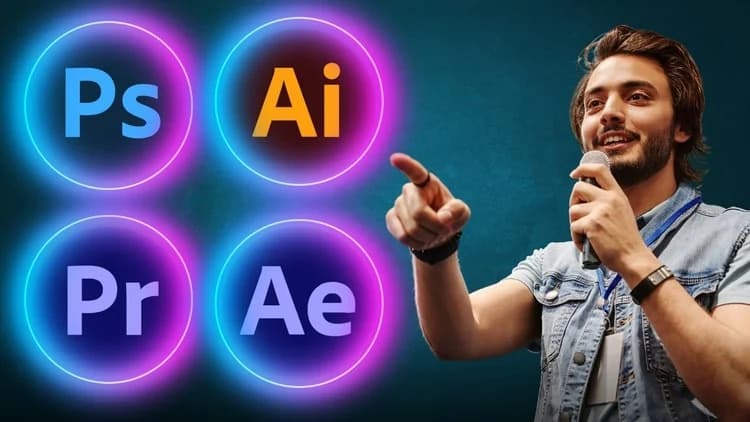
By Udemy · Official page
Complete Graphics Design and Video Editing MasterClass
About this item
Complete Graphics Design and Video Editing MasterClass
Course Curriculum
- 8 sections • 127 lectures • 31h 31m total length
Compatibility & Requirements
- INTRODUCTION Preview 3:04 Explore Adobe Photoshop from a beginner level, learn the workspace, toolbar, and layers, and master image combining, cropping, coloring, strokes, opacity, and exporting.
- Introduction and Workspace 24:16 Learn the Photoshop workspace, presets, and canvas concepts as you start files, move tools, customize the workspace, and distinguish between canvas and artboard.
- HOW TO BECOME A GOOD GRAPHICS DESIGNER 0:01
- Using layers in Adobe Photoshop New 19:57 Learn to use layers in Adobe Photoshop to duplicate, view, lock, and rearrange files, then apply auto tune, auto contrast, and auto color for edits and save to cloud.
- Combining images in Photoshop 12:19 Combine multiple images in a Photoshop frame by layering, resizing with transform scaling, and positioning on a background. Master move and transform tools and layer management.
- Fixing Image using Levels 6:16 Learn to fix images in Photoshop using levels and adjustment panels to adjust brightness and contrast, then enhance color with vibrance and hue and saturation.
- Enhance Colour using Vibrance 3:36 Learn to enhance color with vibrance, compare vibrance with saturation, and adjust the adjustment panel’s levels to emphasize the primary object while shaping the background.
- How to use Hue in Photoshop 3:40 Learn to use hue in Photoshop to change the color of a shoe, using hue and saturation adjustment and tweaking saturation and lightness for the desired look.
- How to Change just one Colour 4:48 Learn to change a single color in Photoshop using adjustment layers and hue and saturation, selecting yellows, magentas, and blues to recolor objects and keep edits natural.
- Black and White Image 5:29 Apply a black and white adjustment layer to control darkening, lighting, and shading of colors; adjust tint, saturation, and color balance to preview results and plan future gradient work.
- Adding Gradient to Image and Text 24:36 Apply gradient overlays to text and images in Photoshop. Customize colors with color stops, adjust opacity, angle, and style (linear, radial, etc.), and save as a new style for reuse.
- Creating a Specific sized document 10:51 Create a specific size document in Adobe Photoshop using poster size in landscape, then adjust image size, canvas size, and resolution, and save as to build a poster layout.
- Creating Shapes in Photoshop 23:46 Learn to create and manipulate shapes in Photoshop, including circles, rectangles, stars, and polygons, using shape tools, transform options, opacity, color fills, and layer techniques.
- Using Adobe Colour Themes 5:21 Explore Adobe color themes in Photoshop and experiment with swatches, gradients, and opacity to enhance photos, videos, and posters. Learn hue and saturation and patterns, looking ahead to text.
- Creating Text in Photoshop 15:19 Learn to create and style text in Photoshop using the horizontal type tool, adjust font, size, color, and spacing with lighting, tracking, and kerning, and use a text box.
- Wrap a text in Photoshop 3:23 Master text wrap in Photoshop by selecting text, opening the type wrap options, and applying modes like bulge, wave, or fish eye, then blend and save.
- Get text to follow a line or Circle 12:52 Learn to make text follow a line or circle by creating a path with the pen tool or the form paint tool and typing on that path.
- All about strokes in Photoshop 21:42 Master Photoshop strokes by applying and editing multiple strokes on text, adjusting size, position, color, and opacity; copy, save layer styles, and explore gradients and patterns.
- Cropping 21:02 Crop and straighten photos in Photoshop using the crop tool, apply aspect ratios and presets, and explore content-aware fill to fit images to magazine or brochure frames.
- Copying from one image to another 9:49 Learn how to copy one image to another in Photoshop, use marquee tools, paste into a new document, and apply free transform to fit layers and create realistic composite effects.
- Cropping an Images inside of Text 18:11 Learn to crop images inside text using clipping masks, adjust color with hue and saturation, and manage layers to create dynamic text reveal effects.
- Exporting 6:17 Learn how to export images in Photoshop, choosing formats like PDF, PSD, PSB, PNG, and JPEG, adjust quality and size, and preserve editing capabilities for final delivery.
- Essential Keyboard Shortcut 1:22
- INTRODUCTION TO THE COURSE 2:42 Master Adobe Premiere Pro basics for professional video editing. Learn the source panel, timeline, cropping, transitions, effects, green screen, audio, exporting, and creating YouTube shorts.
- Adobe Premeire Pro Panels and Interface New 19:55 Adobe Premiere Pro interface and panels, create a new project, import media, position and edit on the timeline, and export your finished video.
- Video Scaling 5:34 Master video scaling in Adobe Premiere Pro by adjusting position and scale in effect controls, using fit and manual scaling to fit the screen and preserve quality.
- Selection Tool 2:43 Use the selection tool in Adobe Premiere Pro to select and move video clips, drag between sequences, and apply ripple delete or cut to manage edits efficiently.
- Track Select Forward Tool 5:14 Master the track selection forward tool in adobe premiere pro to quickly select multiple tracks, toggle with the a shortcut, and manage audio and video sequences efficiently.
- Ripple Edit Tool 5:26 Learn to use the ripple edit tool in Adobe Premiere Pro to trim and cut tracks, and master keyboard shortcuts like b for ripple edit and v for selection.
- Razor Tool 4:16 Master the razor tool in Adobe Premiere Pro to cut and trim video and audio, using shortcut C and ripple delete to remove sections.
- Slip Tool 1:25 Master the slip tool in Adobe Premiere Pro to adjust a clip’s source by slipping through frames, revealing different openings and endings for precise editing.
- Pen Tool 3:59 Master the pen tool in Adobe Premiere Pro to draw graphics over your video, create and edit shapes, and adjust vertices by moving dots and resizing paths.
- Rectangle Tool 1:35 Learn to use the rectangle tool in Adobe Premiere Pro to draw and place rectangle graphics on your video, and note the hand tool and the text tool.
- Hand & Type Tool 4:14 Explore how the hand tool navigates the timeline and how the type tool adds and formats text, enabling precise typography in video editing.
- Source Panel 30:48 Navigate the source panel in Adobe Premiere Pro to prepare clips, measure timing, and drag video and audio to timeline. Mark in/out, insert, overwrite, and export frame to edit efficiently.
- How to Make a Video And Export it 23:44 Learn to create a video in Adobe Premiere Pro by importing clips, trimming, adding text and music, and exporting the final project.
- Timeline 15:07 Master the Adobe Premiere Pro timeline to import clips, arrange video and audio layers, use markers, add text with typography, and export high-quality 4K video.
- Cropping 6:33 Crop a video in Adobe Premiere Pro by adjusting scale and borders in the timeline, using the razor tool to trim, and exporting the final cropped footage.
- Transitions 26:33 Master using transitions in Adobe Premiere Pro to create smooth between-clip effects; learn to locate, drag-and-drop, adjust duration, and export in high quality 4k.
- Green Screen 15:32 Learn to replace backgrounds with a green screen using Ultra Key in Adobe Premiere Pro, add a new background, trim, and render for a polished video.
Frequently Asked Questions
How does instant Telegram delivery via @madbaxapp_bot work?
Activate any plan from $5, then press Download on this page: 7 files (7.1 GB) are sent to your Telegram chat instantly by the bot @madbaxapp_bot.
How do I extract multi-part .part01.rar archives on Windows and macOS?
Download all volumes (.part01.rar, .part02.rar … .partN.rar) into one folder, then start the extraction only from the first volume, part01.rar. On Windows use WinRAR or 7-Zip; on macOS use Keka or The Unarchiver. The other volumes are read automatically.
What is included in the download archive?
The archive includes all project and video files for this release. It does not include one-to-one mentoring or certificates from the original school.
Related Assets
Courses
Master Motion Design with Ben Marriott
Included in plans
Courses
AE Volume II
Included in plans
Courses
AE Volume I
Included in plans
Courses
HUD Animation
Included in plans
Courses
Motion Design With Figma: Animations, Motion Graphics, UX/UI
Included in plans
Courses